EIS Plotting: Nyquist and Bode
Plot Nyquist and Bode diagrams from EIS datasets.
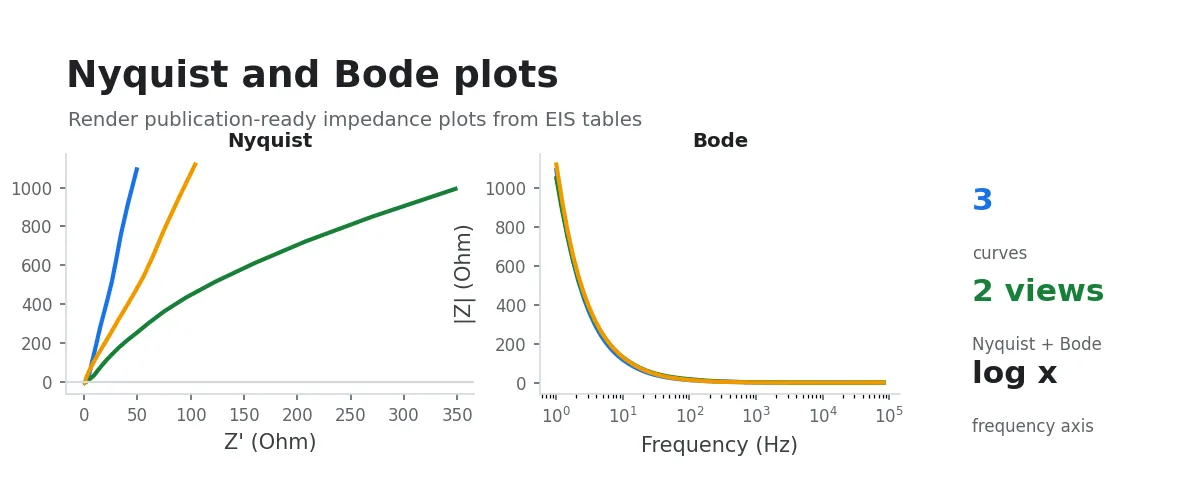
After an EIS measurement, the natural first step is to plot the curves and assess the data quality.
This workflow batch-plots EIS data as Nyquist and Bode diagrams, with an interactive overview directly in the app to help you quickly spot sample differences, outliers, and measurement stability. It also exports an Origin project file so you can refine and publish figures later.
Input Data
Select a folder containing instrument-exported raw EIS data, or multi-select a group of raw EIS data files. Common text, CSV, Excel, EC-Lab .mpr, Gamry .dta, and VersaStudio .par files are recognized automatically.
Procedure
- Select input data: choose an EIS data folder, or multi-select a group of files from the same experiment.
- The system automatically detects analyzable EIS data, shows interactive Nyquist and Bode overviews, and saves static plots in batch.
- Output files are saved in the selected data folder; once processing is complete you can view images and project files directly.
What Gets Generated
1) Nyquist Plot
- x-axis:
- y-axis:
- Interactive and static plots use the same scale per data unit on the x- and y-axes so the curve is not distorted by axis scaling
- Useful for observing charge-transfer impedance, diffusion behavior, and the overall shape before equivalent-circuit fitting
2) Bode Plot
- Magnitude plot: vs. frequency (log scale)
- Phase plot: Phase vs. frequency (log scale)
- Convenient for comparing response mechanisms across different frequency ranges
Output
Interactive Nyquist and Bode plots for all samples are shown in the app. Hover over a curve to inspect frequency and impedance data.
Each sample produces:
*_nyquist_matplotlib.png*_bode_matplotlib.png
When you request an Origin project and Origin is available, the following files are also generated:
*_eis_plots.opju(single-sample Origin project)eis_plots_merged.opju(multi-sample merged Origin project)
Subsequent Analysis
- EIS/DRT Analysis: inspect the relaxation time distribution for the same EIS dataset